# Relação de Retenção de Imposto de Renda
Para que você visualize a Relação de Retenção de Imposto de Renda, deverá acessar o menu **Relatórios>Relatórios Auxiliares>Relação de Retenção IR** defina o modo **Sintético ou Analítico.**
[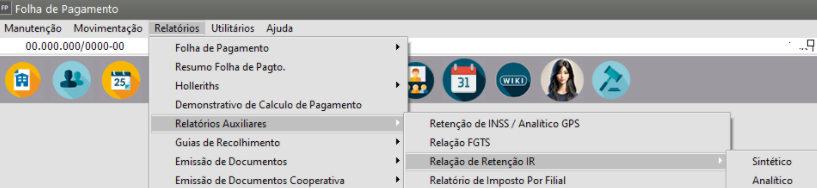](https://autoatendimento.grupoallegus.com.br/uploads/images/gallery/2024-12/c9Dimage.png)
**SINTÉTICO**[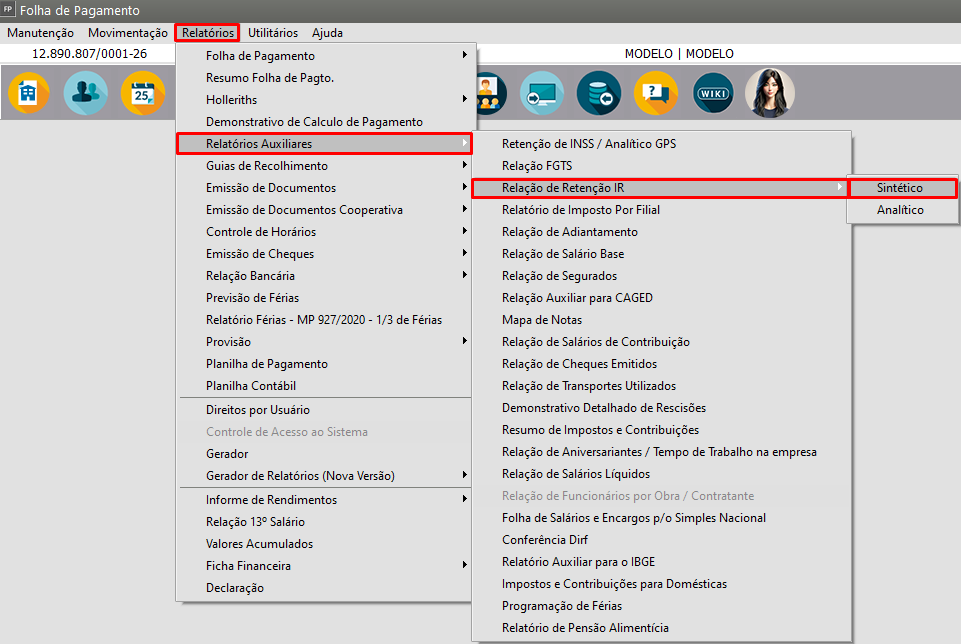](https://autoatendimento.grupoallegus.com.br/uploads/images/gallery/2024-06/dO7image.png)[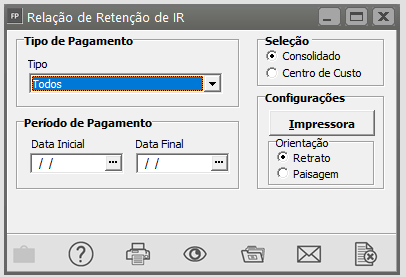](https://autoatendimento.grupoallegus.com.br/uploads/images/gallery/2024-06/H4Mimage.png)Selecione o modo desejado ou a opção **Todos** para visualizar na impressão os modos gerações dos Funcionários:[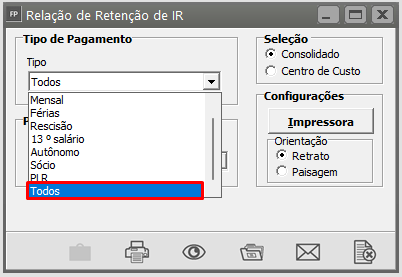](https://autoatendimento.grupoallegus.com.br/uploads/images/gallery/2023-08/ldgimage.png)Especifique o período do pagamento informando a **Data Inicial e Data Final** do mês que está com dúvida, exemplo 07/2023[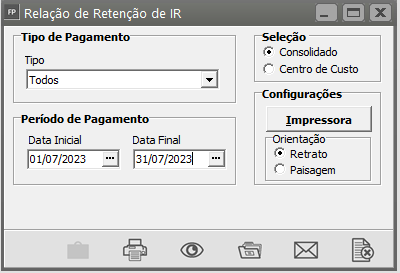](https://autoatendimento.grupoallegus.com.br/uploads/images/gallery/2023-08/oDrimage.png)[ ](https://autoatendimento.grupoallegus.com.br/uploads/images/gallery/2023-08/HCFimage.png)IMPRIME - Permite que você imprima o relatório, ou seja, o envie pra a impressora[ ](https://autoatendimento.grupoallegus.com.br/uploads/images/gallery/2023-08/aeiimage.png)PREVIEW/VISUALIZA - Permite que você visualize o relatório no vídeo[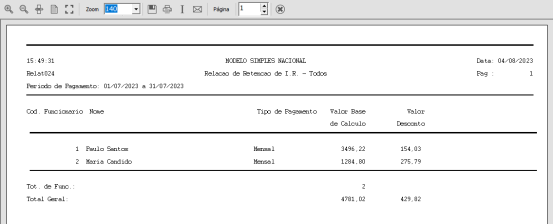](https://autoatendimento.grupoallegus.com.br/uploads/images/gallery/2023-08/XGYimage.png)------------------------------------------------------------------------------------------------------------------------------------------------
##### **Analítico**Faça a configuração da impressão determinando também:
- Marcar a opção Todos no campo tipo de pagamento;
- Informar a data inicial e final do mês que está com a dúvida;
- Marcar para incluir sócios/Autônomos caso possua na empresa.[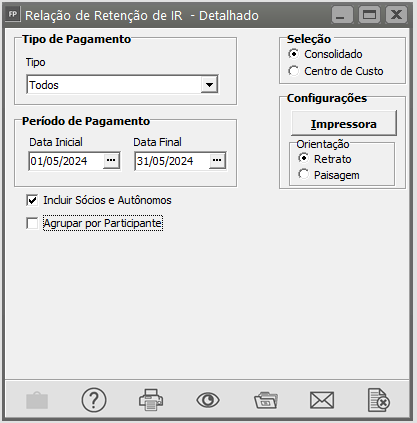](https://autoatendimento.grupoallegus.com.br/uploads/images/gallery/2024-06/nTHimage.png)Agrupar por participante é opcional, segue exemplo abaixo desmarcado:[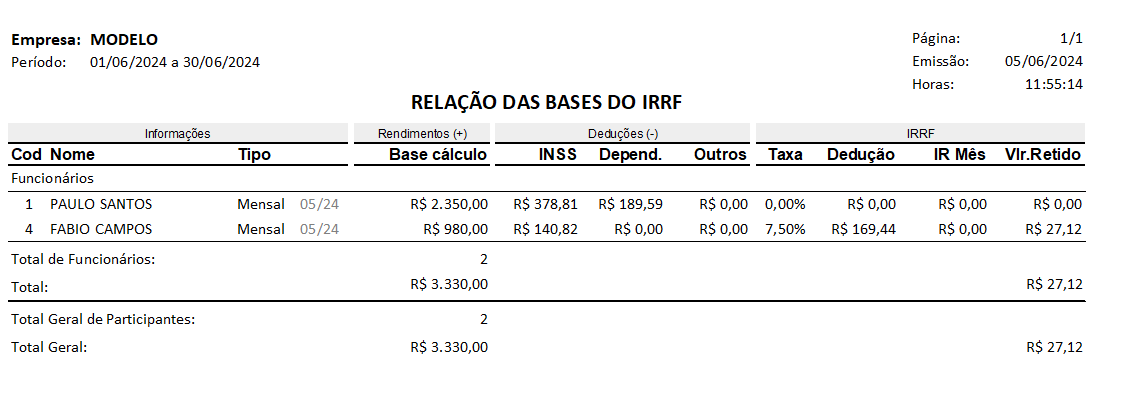](https://autoatendimento.grupoallegus.com.br/uploads/images/gallery/2024-06/u64image.png)Marcado "Agrupar por Participante":[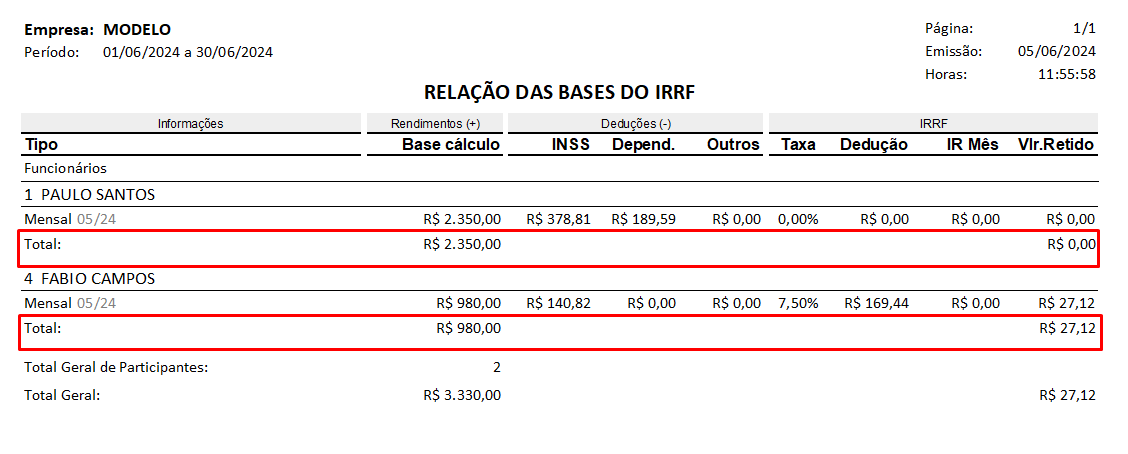](https://autoatendimento.grupoallegus.com.br/uploads/images/gallery/2024-06/WYqimage.png)**Veja também os Itens:**
- [Tabelas de IRRF](https://autoatendimento.grupoallegus.com.br/books/fp/page/tabelas-de-irrf)
- [Tabela de IRRF (PLR)](https://autoatendimento.grupoallegus.com.br/books/fp/page/tabela-de-irrf-plr)
- [Cálculo do IRRF dos Funcionários](https://autoatendimento.grupoallegus.com.br/books/fp/page/calculo-do-irrf-dos-trabalhadores)
- [Cálculo de IRRF para funcionários com Múltiplos Vínculos](https://autoatendimento.grupoallegus.com.br/books/fp/page/calculo-de-irrf-para-funcionario-com-multiplos-vinculos)
- [Guia de Recolhimento DARF - Trabalho Assalariado](https://autoatendimento.grupoallegus.com.br/books/fp/page/guia-de-recolhimento-darf-trabalho-assalariado)
- [Guia de Recolhimento DARF - Pro Labore](https://autoatendimento.grupoallegus.com.br/books/fp/page/guia-de-recolhimento-darf-pro-labore)
- [Guia de Recolhimento DARF - Autônomo](https://autoatendimento.grupoallegus.com.br/books/fp/page/guia-de-recolhimento-darf-autonomo)